Monitoring
This document describes how to access Grafana dashboards to monitor the MoAI Inference Framework and provides an overview of the available metrics. Please make sure to install all prerequisites before starting this monitoring guide.
Accessing Grafana
Admin credentials
Before setting up port forwarding, retrieve the admin credentials for Grafana. The default admin credentials are stored in a Kubernetes secret.
Admin username:
The admin username is typically admin by default. You can verify it using the following command:
kubectl get secret mif-grafana -n mif -o jsonpath='{.data.admin-user}' | base64 -d && echo
Admin password:
The admin password is a randomly generated alphanumeric string with a fixed length of 40 characters. Retrieve it using the following command:
kubectl get secret mif-grafana -n mif -o jsonpath='{.data.admin-password}' | base64 -d && echo
Save these credentials in a secure location. You will need them to log in to Grafana.
Port-forward
To access Grafana from your local machine, set up port forwarding as follows:
kubectl port-forward -n mif services/mif-grafana 3000:80
You should see output similar to the following, indicating that port forwarding is active:
Forwarding from 127.0.0.1:3000 -> 80
Forwarding from [::1]:3000 -> 80
Keep this terminal window open while accessing Grafana. Stop port-forwarding by pressing Ctrl+C in the terminal where the command is running.
Logging in
Open http://localhost:3000 in your browser. You will see the Grafana login page:
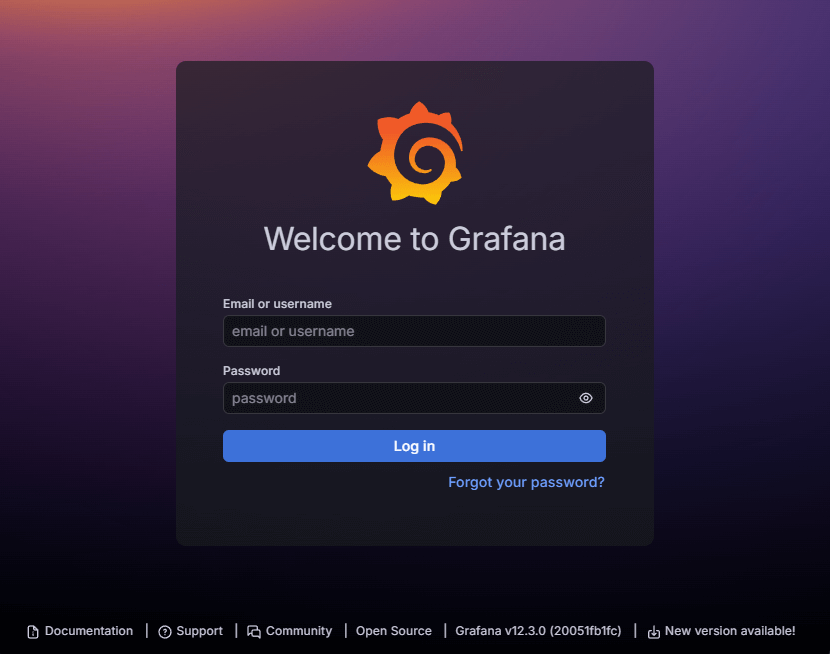
- Enter the admin username (typically
admin) in the Username or email field. - Enter the admin password (retrieved from the secret) in the Password field.
- Click Log in.
Accessing dashboards
After logging in:
- Click on the Dashboards icon in the left sidebar.
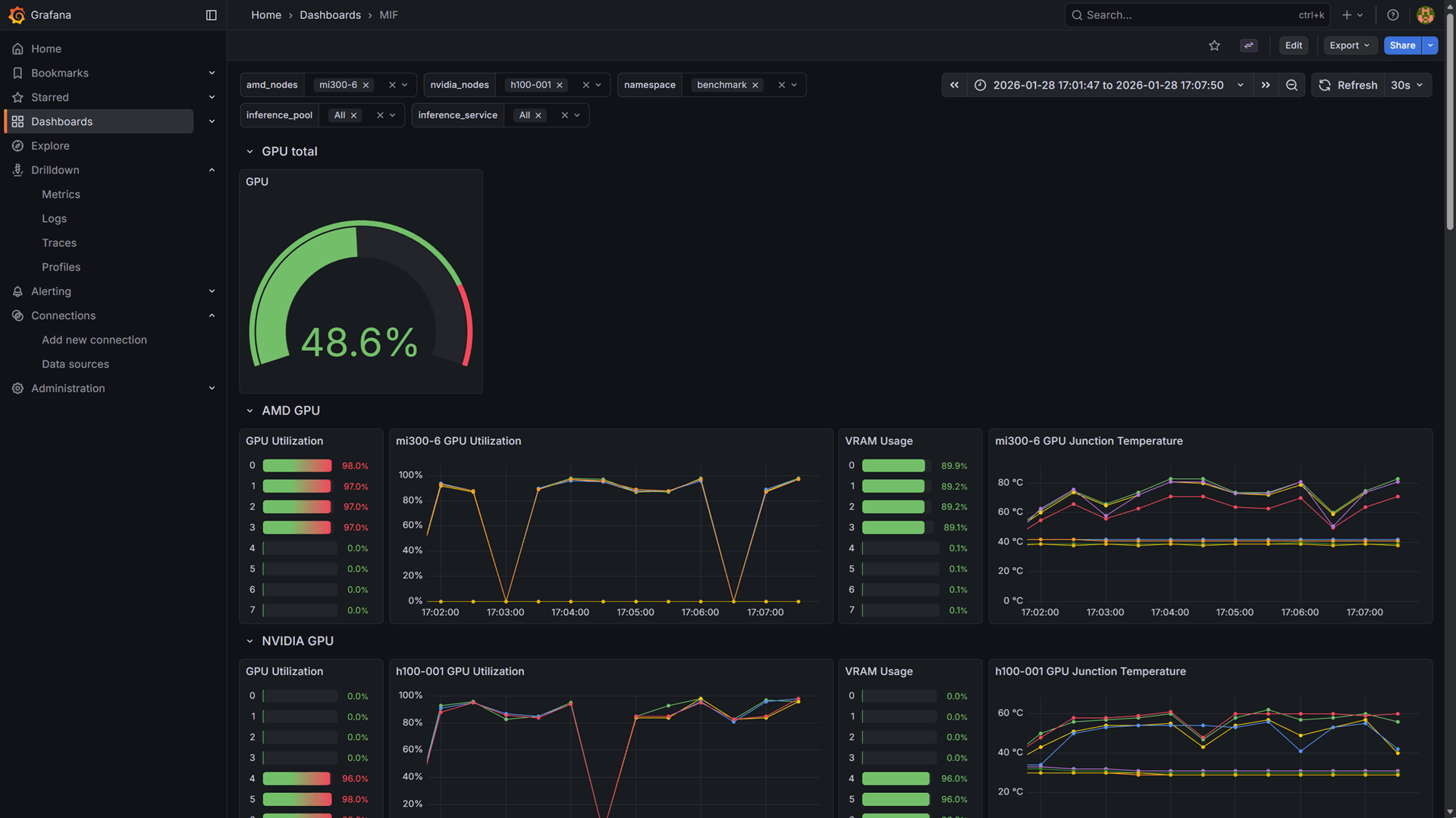
- In the dashboard list, find and click on the MIF dashboard, which provides comprehensive monitoring of the MoAI Inference Framework.
Dashboard filters
The dashboard includes several filters at the top that allow you to customize the view:
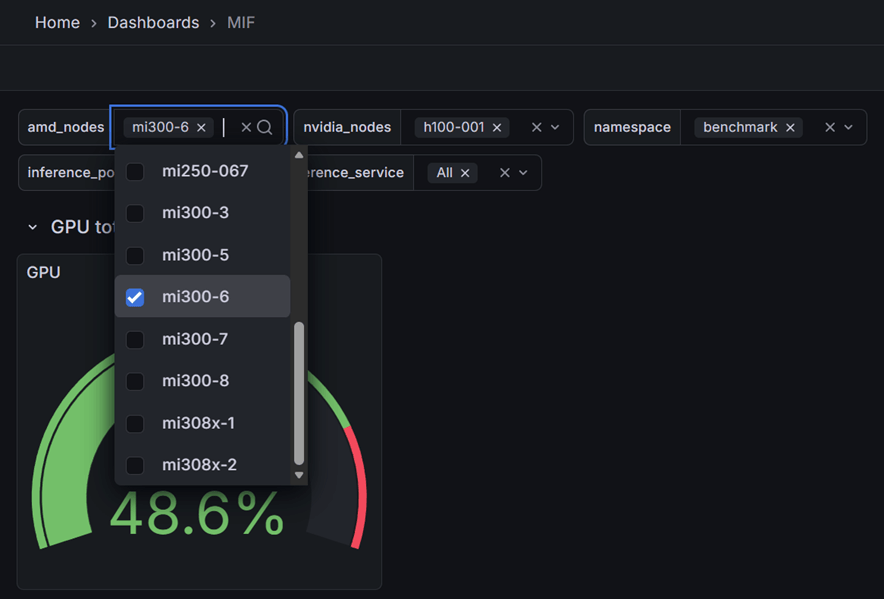
- amd_nodes, nvidia_nodes: Filter metrics by specific AMD or NVIDIA node hostnames. Select one or more nodes of each type to focus on. These filters are particularly useful when viewing GPU metrics, as they allow you to monitor GPU utilization, VRAM usage, and temperature for specific nodes in your cluster.
- namespace: Filter metrics by Kubernetes namespace. Use this to isolate metrics for specific deployments.
- inference_pool: Filter metrics by inference pool name. This helps you monitor specific pool configurations.
- inference_service: Filter metrics by inference service name. Use this to focus on specific model deployments.
By setting the namespace and inference_pool filters together, you can view metrics for a specific model deployment. For example, if you followed the quickstart guide, you would set namespace to quickstart and inference_pool to heimdall to see metrics for the meta-llama/Llama-3.2-1B-Instruct model deployed in that guide.
These filters work together to help you drill down into specific components of your infrastructure for detailed analysis. While you can typically use All for most filters to view aggregate metrics across your entire cluster, you may want to use specific filter values when comparing performance across different optimization options. For instance, if a selected pool contains multiple inference services with different optimization configurations, you can use the inference_service filter to compare how each optimization option performs.
Dashboard overview
The MIF dashboard is organized into several sections, each focusing on different aspects of the system:
GPU total
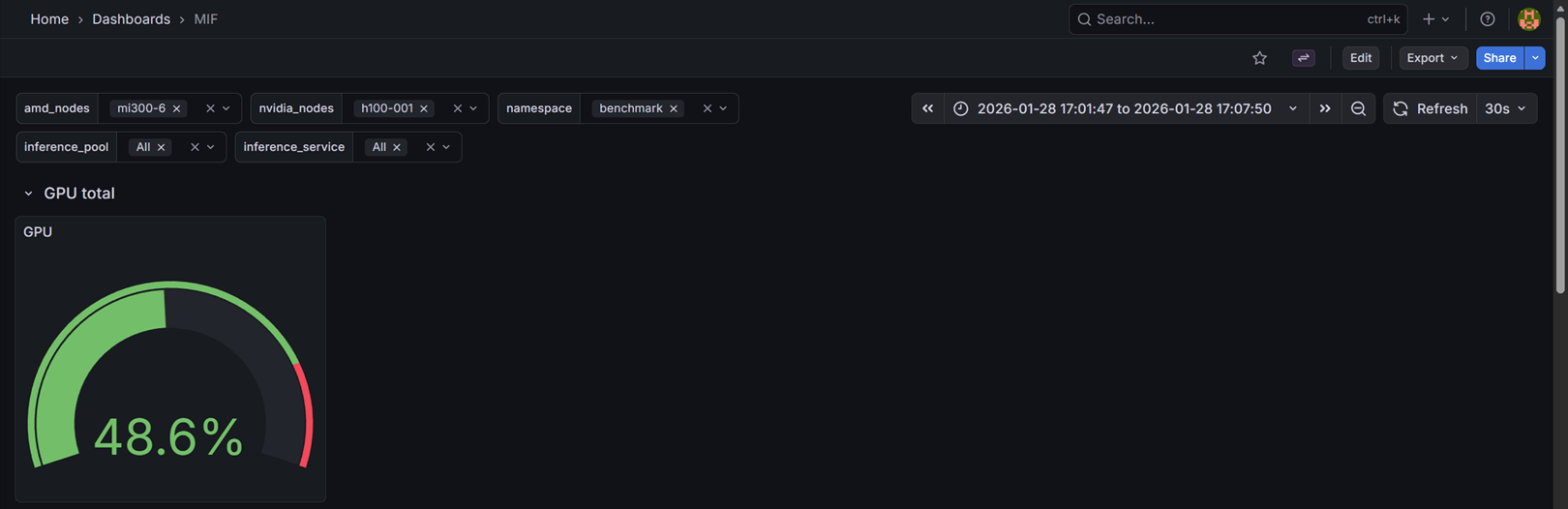
This section displays the overall GPU utilization across all selected nodes as a gauge panel, providing a quick overview of the cluster's GPU usage.
AMD / NVIDIA GPU
These sections provide detailed GPU metrics for each node type:
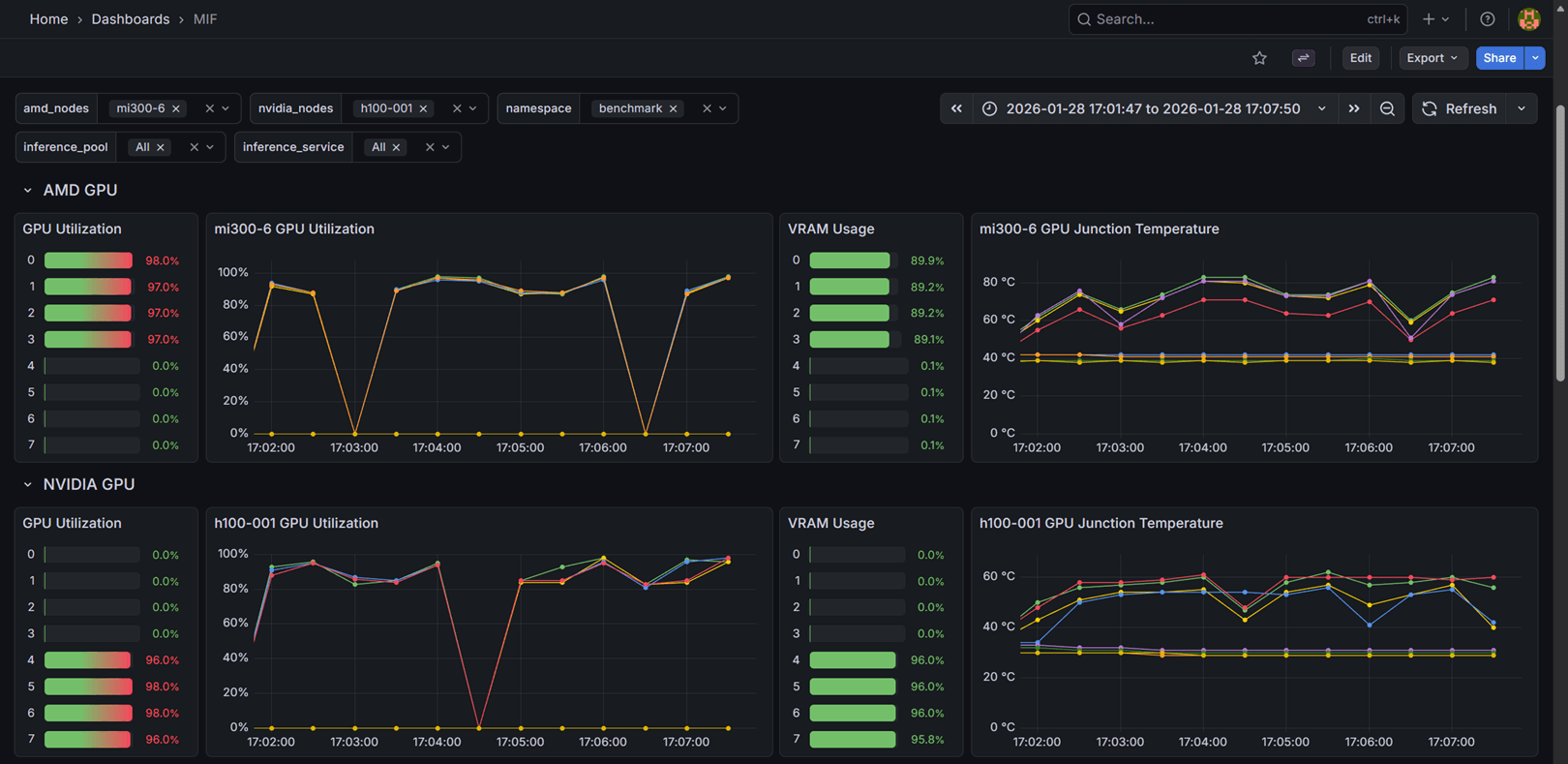
- GPU Utilization: Shows the utilization percentage for each GPU device on the nodes selected via the amd_nodes or nvidia_nodes filters, displayed as both bar gauges and time series graphs.
- VRAM Usage: Displays the percentage of video memory (VRAM) used by each GPU device.
- GPU Junction Temperature: Monitors the junction temperature of each GPU device in Celsius.
These metrics help you identify GPU bottlenecks, memory pressure, and thermal issues across your cluster.
Heimdall
This section is only available when Heimdall is deployed in your cluster. If you do not see these metrics, ensure that Heimdall is installed and running.
This section monitors the Heimdall scheduler component:
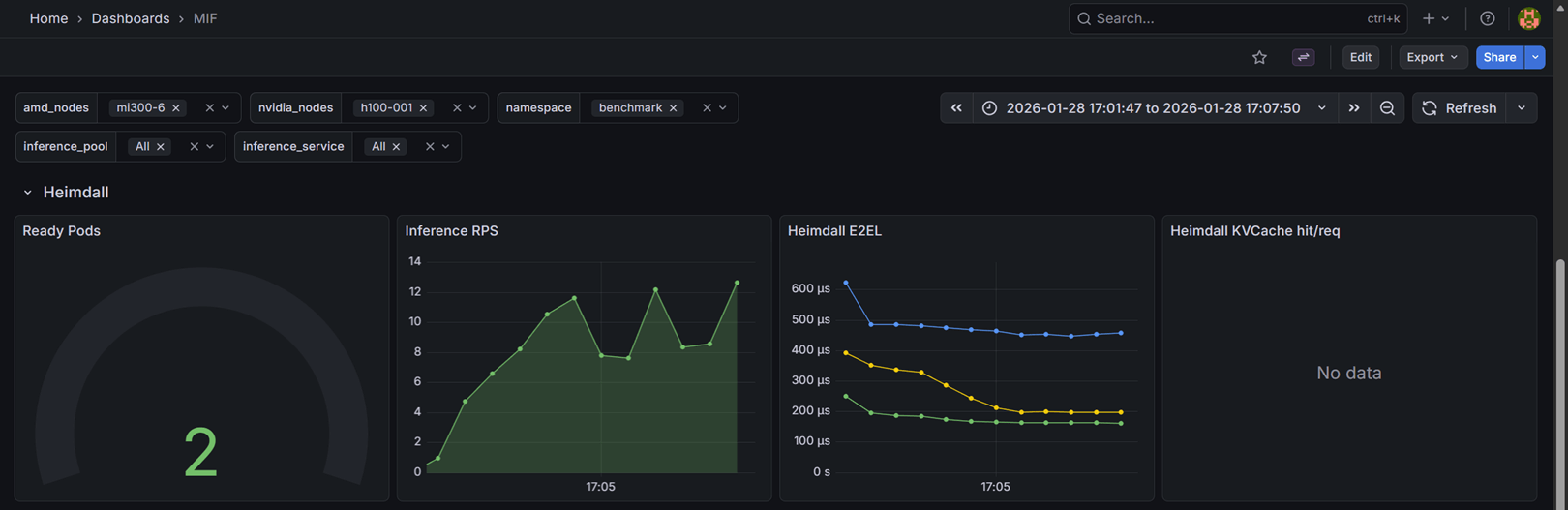
- Ready Pods: Shows the number of ready inference pods in each namespace and pool combination.
- Inference RPS: Displays the requests per second (RPS) handled by Heimdall for each namespace and pool.
- Heimdall E2EL: Shows the end-to-end latency (E2EL) from Heimdall's perspective, including P50, P75, and P95 percentiles. This metric measures the time from when a request enters Heimdall until it is fully processed.
- Heimdall KVCache hit/req: Displays the ratio of KV cache hits to total requests, indicating how effectively the KV cache is being utilized.
These metrics help you understand the scheduler's performance and the efficiency of request routing.
InferenceService
This section is only available when InferenceService (Odin) is deployed in your cluster. If you do not see these metrics, ensure that at least one InferenceService is created and running.
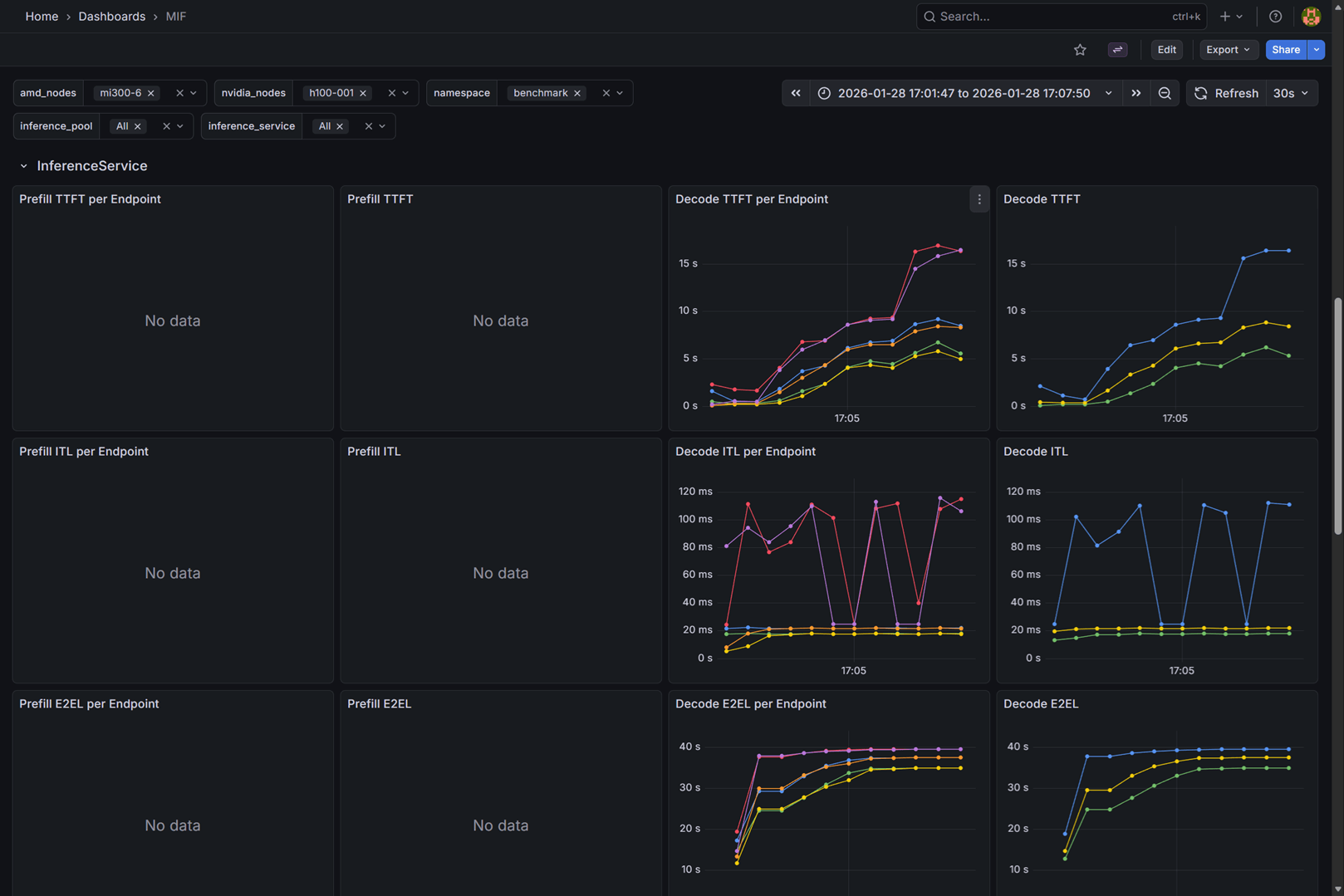
This section provides comprehensive metrics for inference services, organized by different latency and throughput measurements:
Time to first token (TTFT)
- Prefill TTFT per Endpoint: Time to first token for prefill requests, broken down by individual endpoint instances (P50, P75, P95).
- Prefill TTFT: Aggregated time to first token for all prefill requests.
- Decode TTFT per Endpoint: Time to first token for decode requests, broken down by individual endpoint instances (P50, P75, P95).
- Decode TTFT: Aggregated time to first token for all decode requests.
Inter-token latency (ITL)
- Prefill ITL per Endpoint: Latency between consecutive tokens for prefill requests, broken down by individual endpoint instances (P50, P75, P95).
- Prefill ITL: Aggregated inter-token latency for all prefill requests.
- Decode ITL per Endpoint: Latency between consecutive tokens for decode requests, broken down by individual endpoint instances (P50, P75, P95).
- Decode ITL: Aggregated inter-token latency for all decode requests.
End-to-end latency (E2EL)
- Prefill E2EL per Endpoint: Total request latency for prefill requests, broken down by individual endpoint instances (P50, P75, P95).
- Prefill E2EL: Aggregated end-to-end latency for all prefill requests.
- Decode E2EL per Endpoint: Total request latency for decode requests, broken down by individual endpoint instances (P50, P75, P95).
- Decode E2EL: Aggregated end-to-end latency for all decode requests.
Input sequence length (ISL)
- Prefill ISL per Endpoint: Distribution of input sequence lengths for prefill requests, broken down by individual endpoint instances (P50, P75, P95).
- Prefill ISL: Aggregated input sequence length distribution for all prefill requests.
- Decode ISL per Endpoint: Distribution of input sequence lengths for decode requests, broken down by individual endpoint instances (P50, P75, P95).
- Decode ISL: Aggregated input sequence length distribution for all decode requests.
Output sequence length (OSL)
- Prefill OSL per Endpoint: Distribution of output sequence lengths for prefill requests, broken down by individual endpoint instances (P50, P75, P95).
- Prefill OSL: Aggregated output sequence length distribution for all prefill requests.
- Decode OSL per Endpoint: Distribution of output sequence lengths for decode requests, broken down by individual endpoint instances (P50, P75, P95).
- Decode OSL: Aggregated output sequence length distribution for all decode requests.
KV cache usage
- Prefill KVCache Usage per Endpoint: KV cache utilization percentage for prefill requests, broken down by individual endpoint instances.
- Prefill KVCache Usage: Aggregated KV cache utilization for all prefill requests.
- Decode KVCache Usage per Endpoint: KV cache utilization percentage for decode requests, broken down by individual endpoint instances.
- Decode KVCache Usage: Aggregated KV cache utilization for all decode requests.
Waiting queue
- Prefill waiting queue per Endpoint: Number of requests waiting in the queue for prefill processing, broken down by individual endpoint instances.
- Prefill waiting queue: Aggregated waiting queue size for all prefill requests.
- Decode waiting queue per Endpoint: Number of requests waiting in the queue for decode processing, broken down by individual endpoint instances.
- Decode waiting queue: Aggregated waiting queue size for all decode requests.
Prefix hit rate
- Prefill prefix hit rate per Endpoint: Percentage of prefix cache hits for prefill requests, broken down by individual endpoint instances.
- Prefill prefix hit rate: Aggregated prefix cache hit rate for all prefill requests.
- Decode prefix hit rate per Endpoint: Percentage of prefix cache hits for decode requests, broken down by individual endpoint instances.
- Decode prefix hit rate: Aggregated prefix cache hit rate for all decode requests.